
You can use email templates to define the content of frequently sent emails. Some templates are sent automatically, but all can be sent adhoc, for a single person, or multiple people on your list.
Update or Create a Template
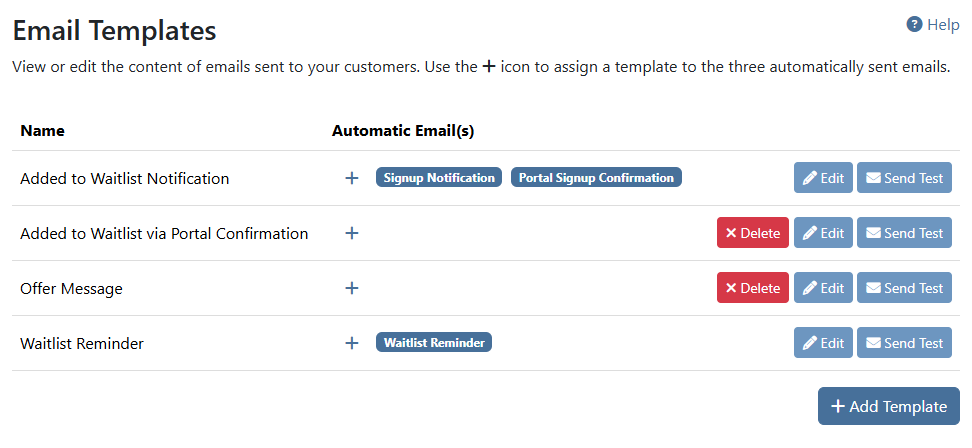
Go to Settings > Site Settings > Email Templates and click Edit next to the email template you would like to edit, or click Add Template to create a new template.
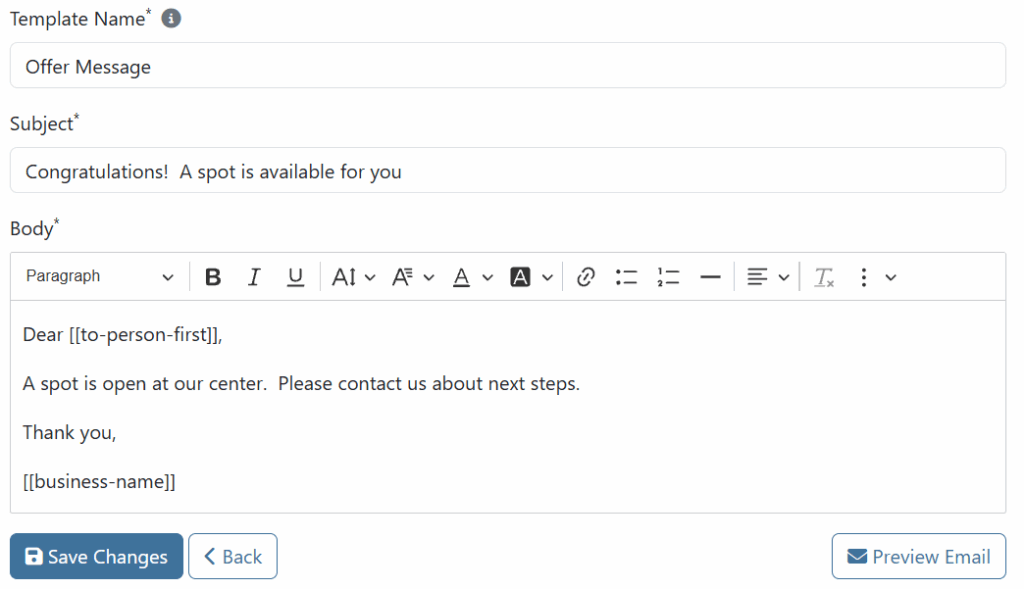
For details on how to edit the Subject or Body, and how to use placeholders, see the Email Content help page.
Assigning Templates to Automatic Emails
There are 3 different emails which are automatically sent by WaitlistPlus. You can edit the default content of these, or assign them to new templates that you create.
- Signup Notification – Sent to a person when added to the list via an admin
- Portal Signup Confirmation – Sent to a person when added to the list themselves via the portal
- Waitlist Reminder – Sent on a periodic basis while on the list
To change what template is used for one of these three automatic emails, click on the plus sign (+) under Automatic Email(s) and choose 1 or more of the automatic emails to assign to that template.
Sending an Email
There are a few different ways to send an email from WaitlistPlus. Some are sent automatically, but you also have multiple ways to send them adhoc, including.
- To an entire list
- To a single person from the person detail page
- To one or more selected people on a list
View the Sending Emails article for more information.