
Overview
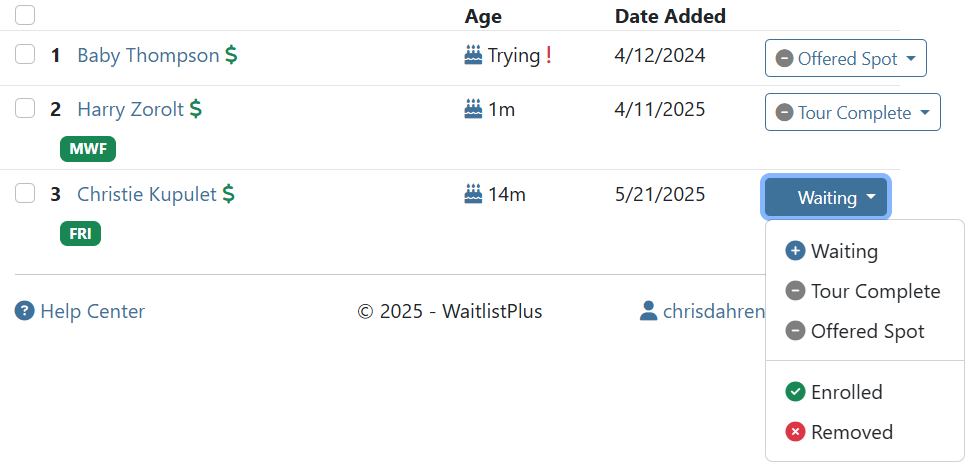
Keep track of the status of each person on your waitlist with a customizable status. Use this status to quickly see where they are in the enrollment process and to remove them from the list either because of successful placement, or because they no longer can or want to be on the list.
Status Types
There are 4 status types that you can use to customize your customer’s waitlist journey. Each type has it’s own role in that journey.
- Entry Status – The initial status of someone who has been added to your waitlist. There is only one of these statuses, and everyone added to your list will be put on this status initially.
- Intermediate Status – These statuses occur between the entry and removal of a waitlist journey. Create as many as you like, or none if you have a simple process.
- Complete Status – This is the status that indicates someone has successfully made it through the waitlist process. Some examples of this status are “Enrolled”, “Registered”, “Accepted” etc.
- Removed Status – This status indicates that the person was removed from the list because they were no longer eligible, or they requested to be removed.
Removal Reasons
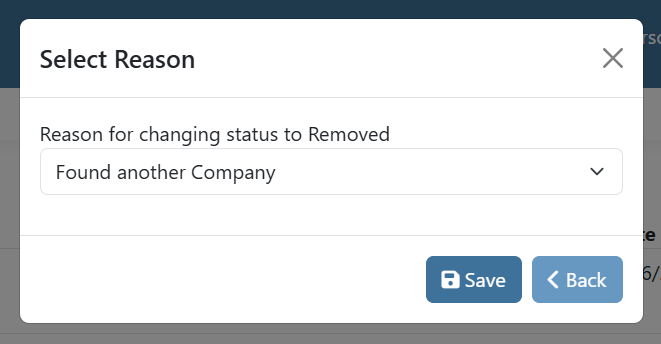
When someone is removed from the list, either because they completed it, or they are removed, you can present a list of reasons to select. If you have specified one or more reasons, the user will be prompted to select one when they set a person’s status to the Complete or Removed status. If no reasons have been created the person will just be removed from the list.
Setup
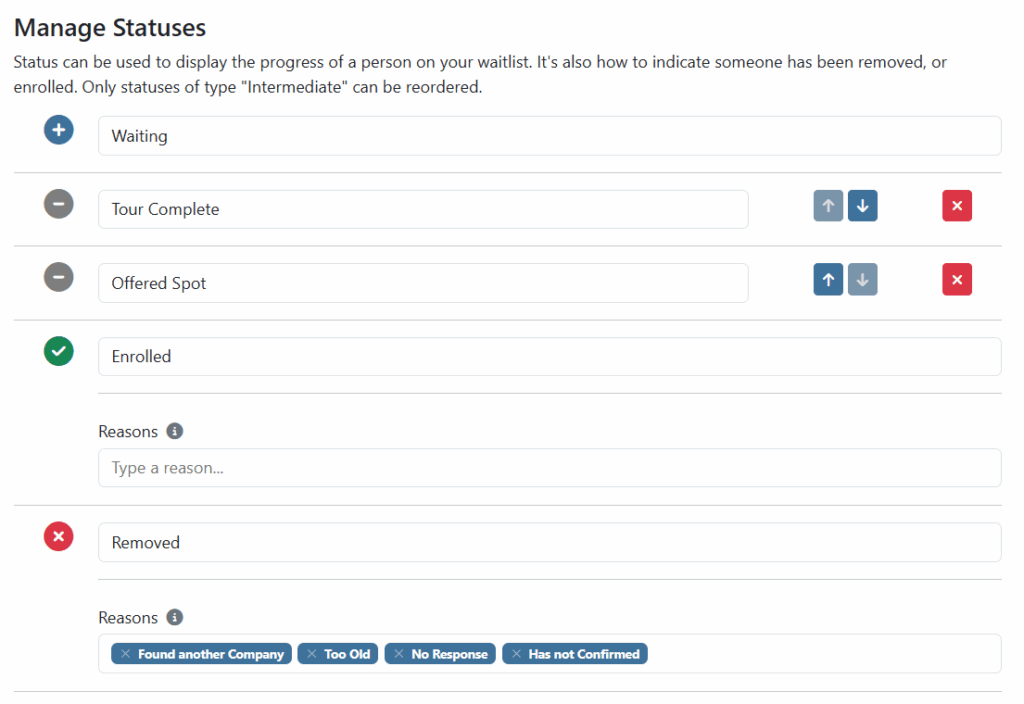
To modify your Statuses and Reasons go to Settings > Site Settings > Status. Here you can:
- Change the status names
- Add, remove or reorder Intermediate statuses
- Update Removal Reasons
Bulk Edit for Multiple People
When viewing a list, you can change the status for multiple people at the same time.
Use the checkboxes to the left of the Person’s name to select the people you want to update. Then Click on the Edit button near the top right corner of the page.
There you can choose the status that you want them all to be changed to. If this is a Complete or Removed status and you have Reasons defined, you will be prompted to select one.
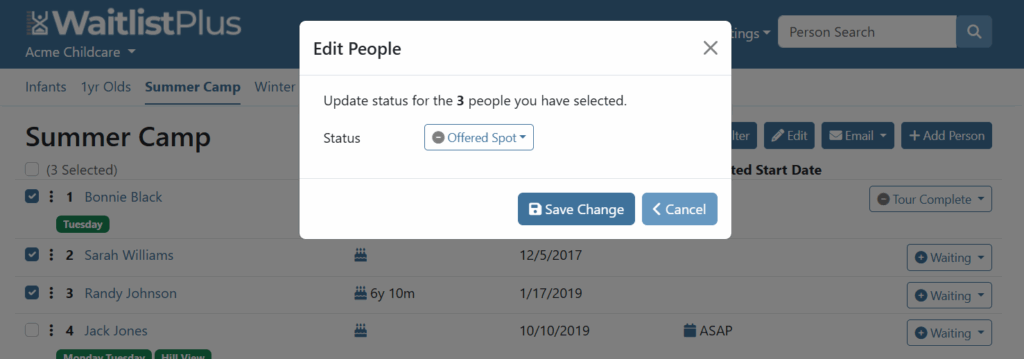
If you select a person who already has the status that you have chosen, they will not be updated.
Filtering by Status
If you want to filter a list by status, click on the Filter button at the top of the list, and select which status you want to filter by. Since we don’t show people who have been removed from the list, you will only see the Entry and and Intermediate statuses as options.
Where does Status appear?
You can see Status and Removal Reasons throughout the app. They appear in widgets, list pages, on the Person’s list history detail page, and in Exports.